
Technical Guide: Bypassing Windows 11 Hardware Constraints (TPM, CPU, and RAM)

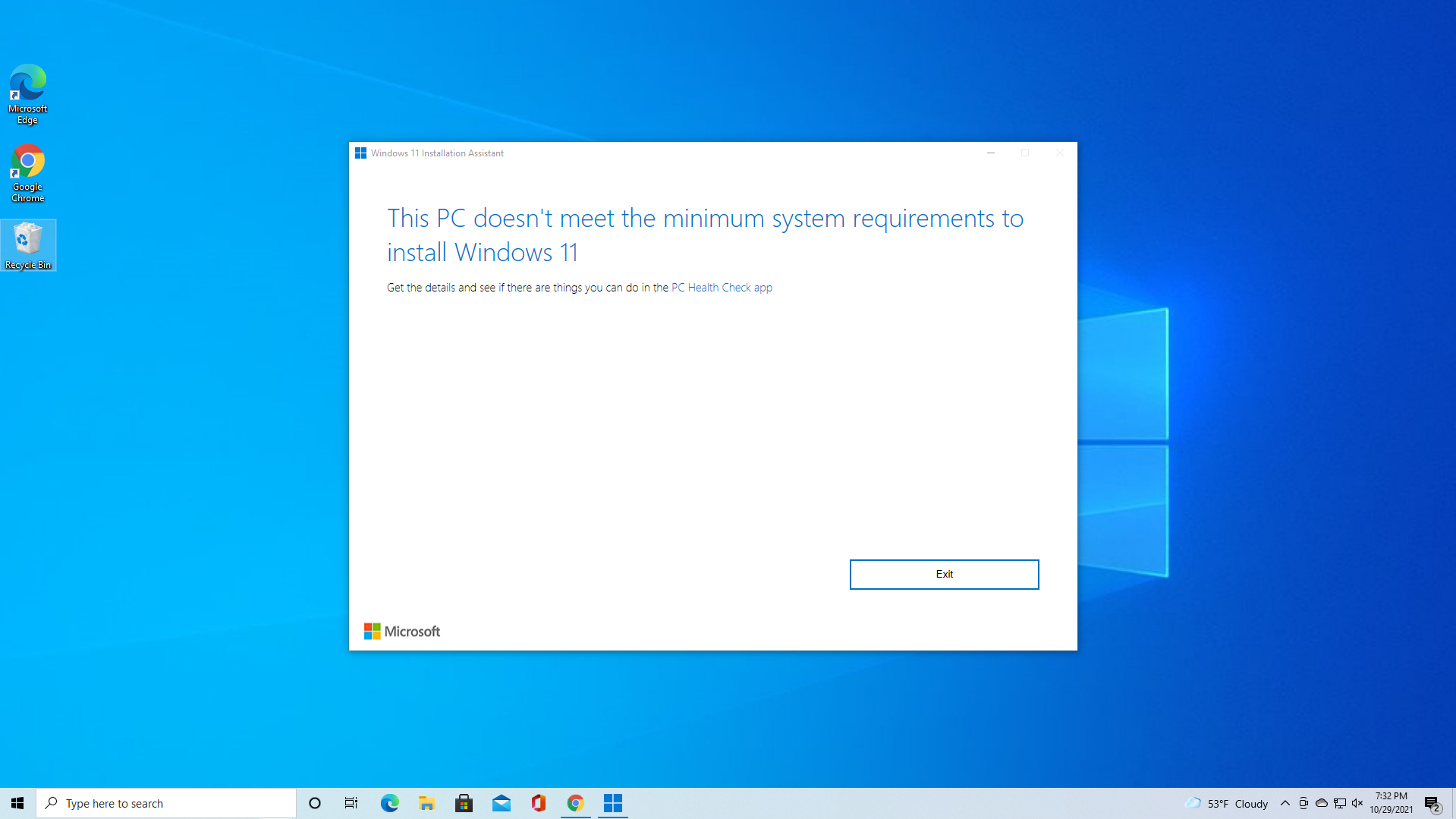
Microsoft’s stringent hardware requirements for Windows 11—specifically the mandate for TPM 2.0, compatible CPUs, and a minimum of 4GB of RAM—often prevent functional older hardware from upgrading. However, these barriers are not absolute. By utilizing administrative tools like the Windows Registry Editor during installation or leveraging automated utilities like Rufus, users can successfully deploy Windows 11 on legacy systems.
Key Takeaways: Deployment Workarounds
- Registry Modification: A manual method to bypass TPM and Secure Boot checks during a clean installation by creating a specific "LabConfig" key.
- Automated USB Creation: Using Rufus to generate a modified installation drive that automatically strips hardware requirement checks.
- Official Limitation: Microsoft’s official bypass method still requires at least TPM 1.2, making it ineffective for systems completely lacking TPM hardware.
- Update Scripting: Advanced scripts can allow non-compliant systems to receive updates via Windows Update after initial installation.
Method 1: Manual Registry Bypass During Clean Install
This approach is ideal for users performing a fresh installation from a standard Windows 11 ISO. By intercepting the installation process before the hardware check occurs, you can instruct the installer to ignore specific hardware parameters.
Step-by-Step Instructions:
- Initiate boot from your Windows 11 installation media. When the language selection screen appears, do not click next.
- Press SHIFT + F10 to open the Command Prompt interface.
- Type
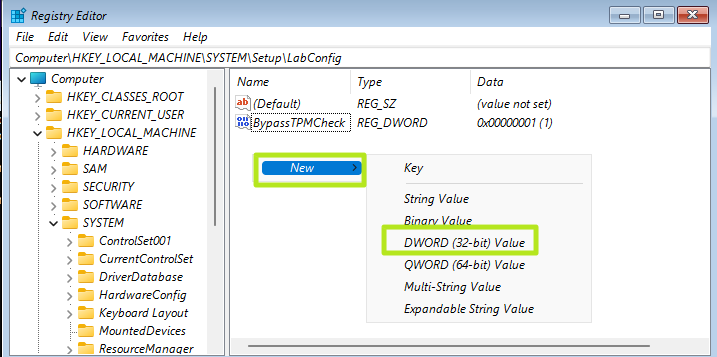
regeditand press Enter to launch the Registry Editor. - Navigate to:
HKEY_LOCAL_MACHINE\SYSTEM\Setup. - Right-click Setup, select New > Key, and name it
LabConfig. - Inside LabConfig, create DWORD (32-bit) values named
BypassTPMCheckandBypassSecureBootCheck, setting both to 1. - To bypass RAM requirements, add a DWORD named
BypassRAMCheckand set it to 1.
Method 2: Automated Bypass via Rufus Utility
Rufus is a free utility that simplifies the process by embedding the bypass instructions directly into the USB installation media. This method is preferred for users who want to avoid manual registry editing.
Requirements: A USB flash drive with at least 16GB of capacity.
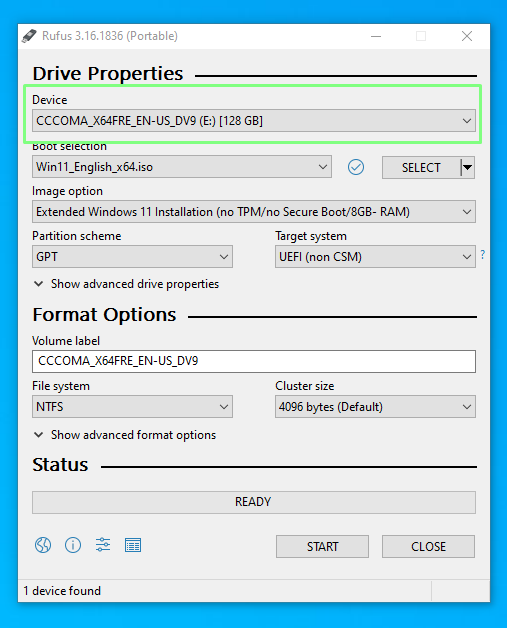
- Download and launch the latest version of Rufus.
- Select your USB drive and set the Boot selection to "Disk or ISO image".
- Download the Windows 11 ISO directly through Rufus or select an existing file.
- When clicking Start, Rufus will present a "Windows User Experience" dialog.
- Check the box: "Remove requirement for 4GB+ RAM, Secure Boot and TPM 2.0".
Professional Troubleshooting FAQ
Conclusion
While Microsoft's hardware restrictions are designed to ensure a baseline of security and performance, they do not have to be an endpoint for older but capable PCs. Whether through manual registry edits or the automated convenience of Rufus, bypassing TPM and CPU checks is a straightforward technical procedure that restores utility to legacy hardware.
Posting Komentar untuk "Technical Guide: Bypassing Windows 11 Hardware Constraints (TPM, CPU, and RAM)"